Expenses by Supplier Type Widget
The Expenses by Supplier Type widget groups your spending by the type of business you're purchasing from. Instead of individual merchants, it shows how much you spend at supermarkets, restaurants, gas stations, online stores, and other business categories.
What Does It Show?
This widget aggregates all your expense transactions and groups them by supplier type (business category). For each type, it displays:
- Total amount spent - The sum of all transactions at that type of business
- Percentage of total expenses - What share of your spending goes to each business type
- Number of suppliers - How many individual merchants of that type you've visited
Supplier Types
Apocha recognizes dozens of business types, automatically categorizing your merchants. Common types include:
| Category | Examples |
|---|---|
| Supermarket | Grocery stores, food retailers |
| Restaurant | Dining establishments, cafes |
| Gas Station | Fuel stations |
| Online Store | E-commerce retailers |
| Pharmacy | Drugstores, pharmacies |
| Electronics Store | Tech and electronics retailers |
| Clothing Store | Fashion and apparel shops |
| Utility | Electricity, water, gas providers |
| Insurance | Insurance companies |
| Telecom | Phone and internet providers |
| Healthcare | Doctors, hospitals, clinics |
| Transportation | Public transit, taxis, ride-sharing |
And many more categories covering all aspects of daily spending.
Why Track by Supplier Type?
While tracking individual suppliers shows where you shop, supplier type analysis reveals broader spending patterns:
| Insight | What You Learn |
|---|---|
| Lifestyle spending | How much goes to restaurants vs. groceries |
| Essential vs. discretionary | Utilities and insurance vs. entertainment and shopping |
| Category budgeting | Set realistic budgets based on actual spending by type |
| Habit awareness | Discover if online shopping or dining out dominates your budget |
| Comparison benchmarks | Compare your category spending to typical patterns |
Display Modes
The widget offers three visualization options:
Pie Chart View (Default on Desktop)
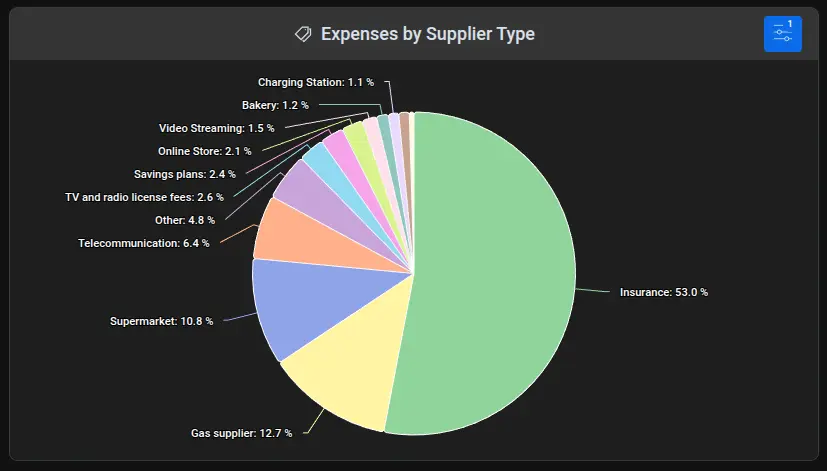
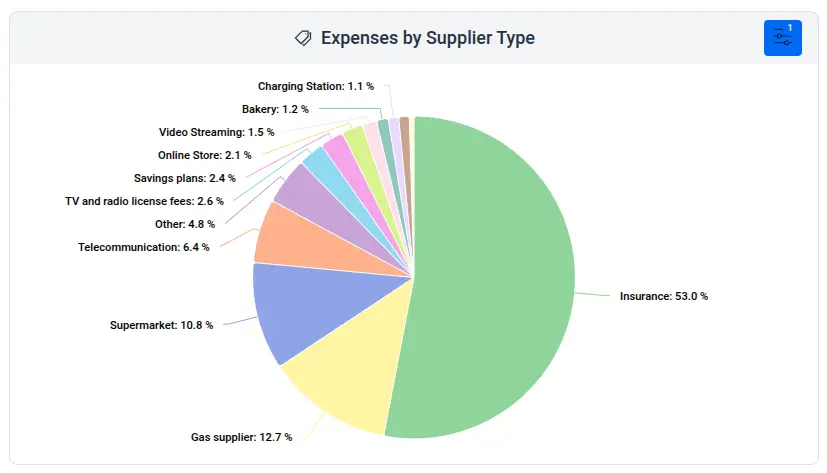
The pie chart shows spending distribution across business types as proportional slices. Each slice represents a supplier type with its share of total spending. Hover for exact amounts and percentages. Ideal for quickly seeing which business categories dominate your expenses.
Bar Chart View (Default on Mobile)
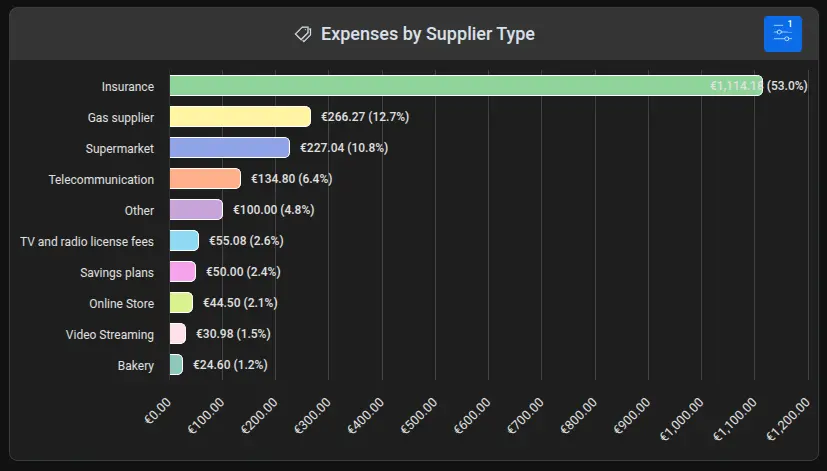
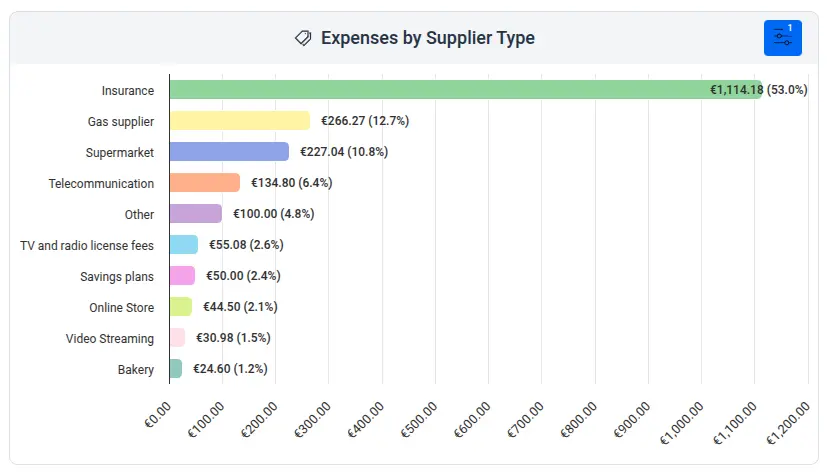
The bar chart displays business types as horizontal bars sorted by spending. This view makes it easy to compare spending across many categories and works well on mobile screens. Each bar shows the amount and percentage.
Grid View
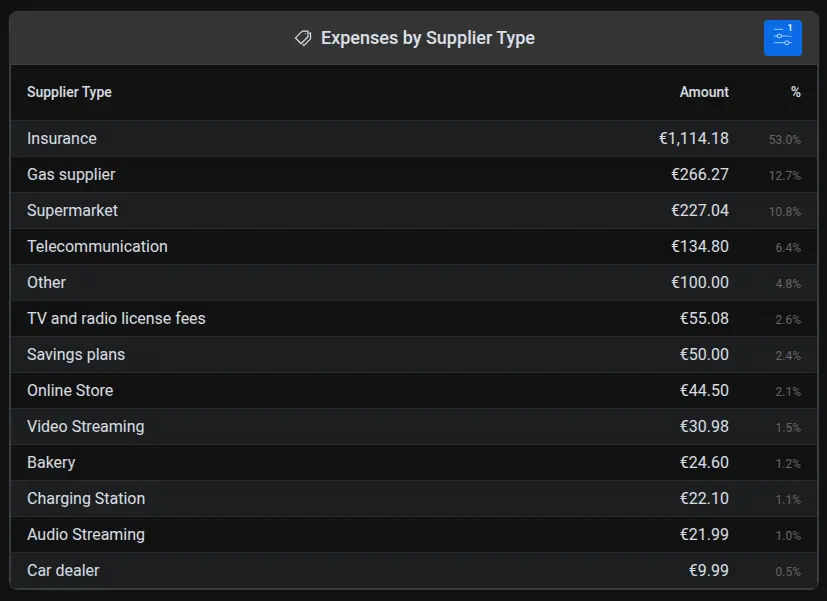
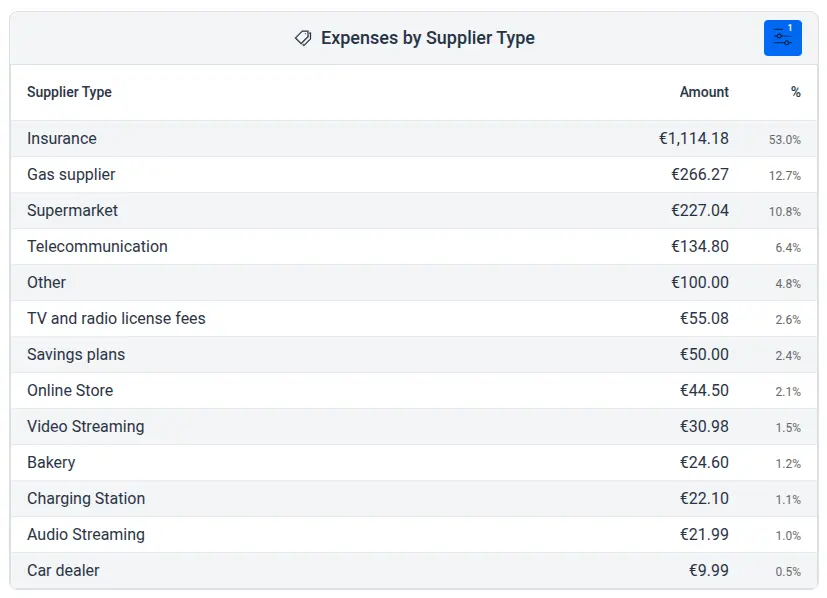
The grid view presents data in a sortable table:
| Column | Description |
|---|---|
| Supplier Type | The business category |
| Amount | Total spent at this type of business |
| % | Percentage of total expenses |
Use this view when you need precise figures or want to scan through all categories.
Configuration Options
Click the filter icon in the widget header to customize your analysis.
Date Range
Control the time period:
- Predefined intervals - Current month, last month, last 3/6/12 months, current/last year, all time
- Custom range - Select specific start and end dates
Account Filter
Limit analysis to specific accounts:
- All accounts (default) - Aggregate across all accounts
- Selected accounts - Analyze specific accounts only
Tag Filter
Filter by transaction tags:
- Focus on tagged expenses (e.g., "business" or "vacation")
- Exclude specific transaction types
Display Mode
Choose your visualization:
- Pie Chart - Best for proportional view
- Bar Chart - Best for comparing categories
- Grid - Best for detailed numbers
Number of Categories
Limit how many supplier types appear (1-50). Shows top categories by spending. Reducing this focuses on major categories.
Using Supplier Type Insights
Common Spending Patterns
Typical patterns you might discover:
- Supermarkets lead - Grocery spending often ranks highest for families
- Dining surprises - Restaurant spending is frequently higher than expected
- Subscription services - Streaming, software, and online services can add up
- Transportation costs - Gas stations and transit reveal commuting expenses
- Healthcare baseline - See your ongoing healthcare spending
Actionable Insights
Use this data to:
- Create category budgets - Set spending limits for restaurant, entertainment, or shopping categories
- Identify savings opportunities - High restaurant spending might suggest more home cooking
- Plan for expenses - Understand seasonal patterns (higher utility costs in winter, travel in summer)
- Balance lifestyle - Ensure essential spending (groceries, utilities) aligns with discretionary spending
- Track behavior changes - Monitor if lifestyle changes affect your category mix
Comparing Time Periods
Switch between time periods to spot trends:
- Month-over-month - See if restaurant or shopping spending is increasing
- Year-over-year - Compare this year's patterns to last year
- Seasonal patterns - Identify categories with seasonal variation
Supplier Type vs. Expenses by Category
Apocha offers two complementary analysis widgets:
| Feature | Expenses by Supplier Type | Expenses by Category |
|---|---|---|
| Groups by | Type of business | Transaction category |
| Example | All supermarket purchases | All "Groceries" categorized transactions |
| Based on | Automatic merchant classification | User-assigned categories |
| Best for | Understanding where you shop | Understanding what you buy |
Use both widgets together for complete spending visibility.
Customization
Personalize the widget:
- Custom Title - Click the title to rename (e.g., "Spending by Business Type" or "Where I Shop")
- Custom Icon - Click the icon to choose a different symbol
- Widget Size - In edit mode, drag edges to resize
Related Features
- Expenses by Supplier - See individual merchants instead of categories
- Expenses by Category Widget - Analyze by transaction category
- Monthly Cash Flow Widget - Track overall income vs. expenses
- Savings Rate Widget - See how category spending affects savings
- Receipt List - The supplier type column in your transaction list shows each transaction's business type
Part of the Dashboard Widgets guide series.