New: Understand Your Spending by Business Category
Here's a question most expense trackers can't answer: Do you spend more at restaurants or supermarkets?
You might see "REWE €450, EDEKA €280, Lidl €190" in your transactions. But that's three data points, not an insight. What you really want to know is: "Supermarkets: €920" - your total grocery spending across all stores.
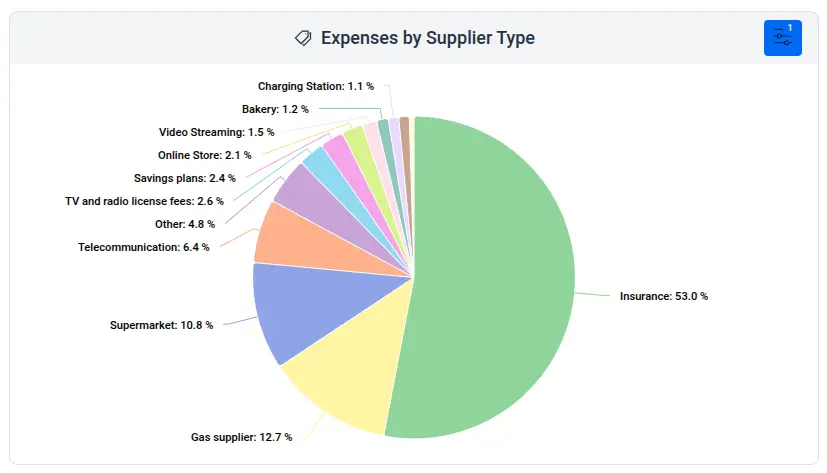
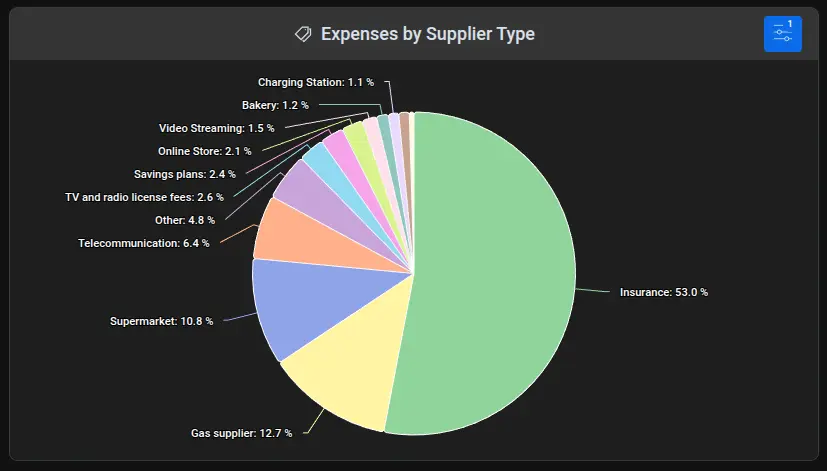
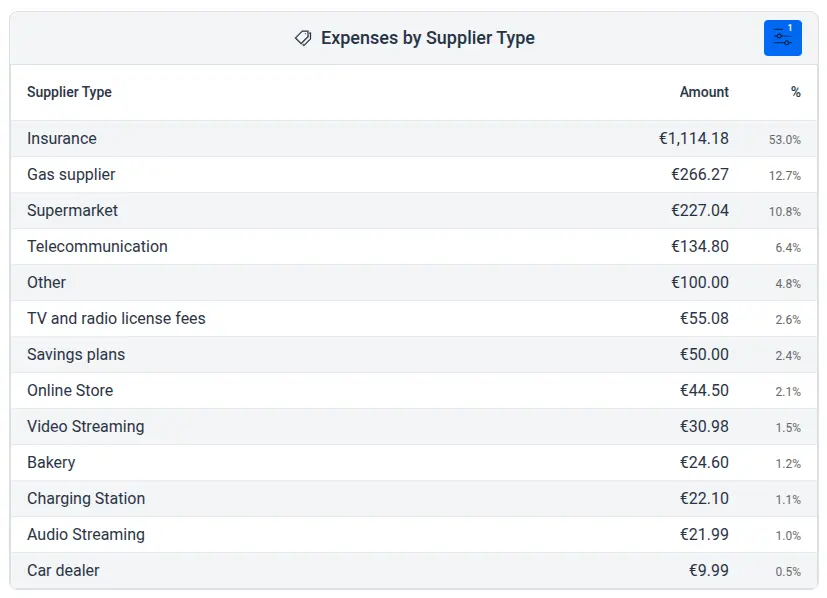
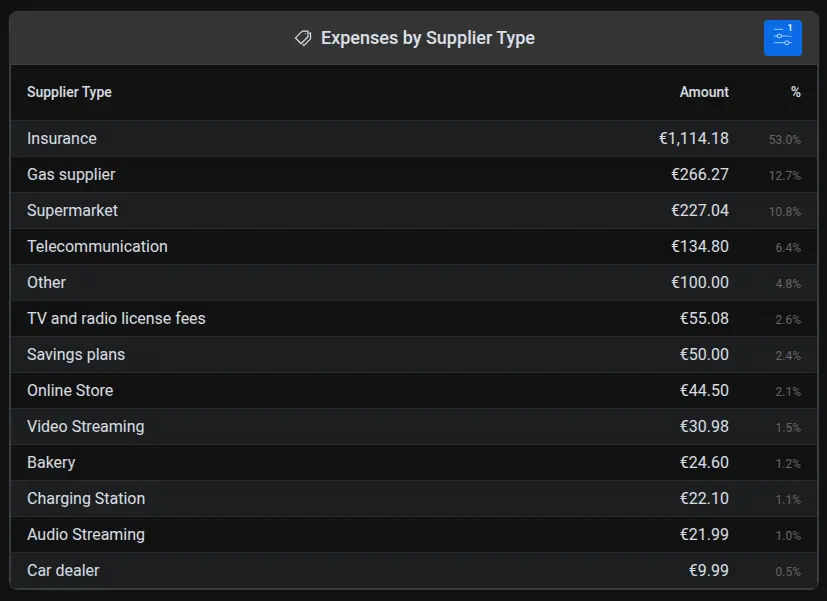
That's exactly what our new Expenses by Supplier Type widget shows you.
Beyond Individual Merchants
While our Expenses by Supplier widget shows where you shop, the Expenses by Supplier Type widget reveals how you spend. It automatically groups your merchants into categories:
- Supermarkets, restaurants, gas stations
- Online stores, pharmacies, electronics
- Utilities, insurance, healthcare
- And dozens more
No manual tagging required. Apocha recognizes the business type automatically.
The Insights That Surprise People
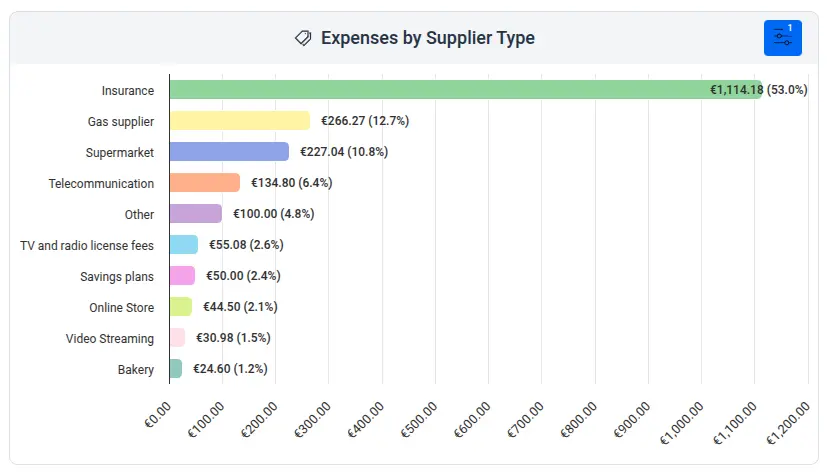
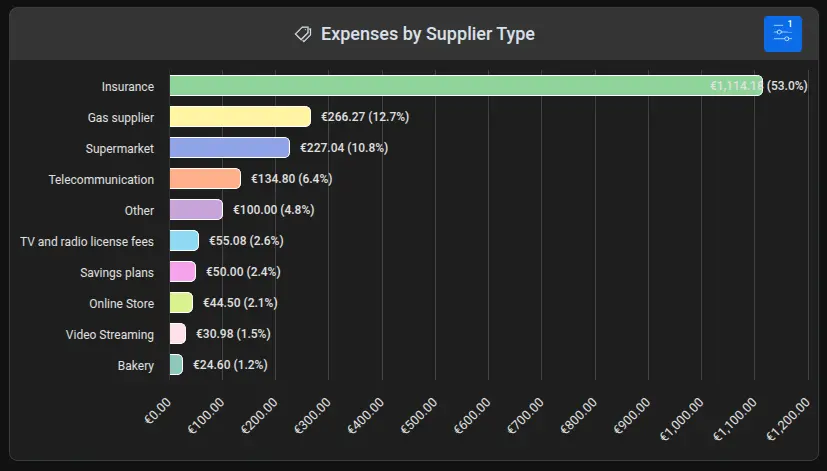
When users first see their spending by business type, common reactions include:
- "I spend that much on restaurants?" - Dining out often ranks higher than expected
- "Online shopping has taken over" - E-commerce spending quietly grows month over month
- "My grocery spending is actually reasonable" - Sometimes the data is reassuring
A New Column in Your Receipt List
Along with the widget, we've added a Supplier Type column to the receipt list. Now you can see the business category for each transaction at a glance - and sort or filter by it.
Get Started
Add the widget to your dashboard:
- Dashboard → Edit → Add widget
- Select Expenses by Supplier Type
- Explore your spending patterns
Want to dive deeper? Read the complete guide for filtering options and configuration details.
Curious about your spending patterns?
Open apocha and add the Expenses by Supplier Type widget today.