Savings Rate Widget
The Savings Rate widget shows you how much of your income you're actually saving. It's one of the most important metrics for understanding your financial health and tracking progress toward your savings goals.
What Is Savings Rate?
Your savings rate is the percentage of your income that you save rather than spend. It's calculated as:
Savings Rate = (Income - Expenses) / Income × 100%
For example, if you earn $5,000 and spend $4,000, your savings rate is:
- ($5,000 - $4,000) / $5,000 × 100% = 20%
A higher savings rate means you're keeping more of what you earn, accelerating your path to financial goals like an emergency fund, home purchase, or retirement.
Time Periods
The widget displays your savings rate across multiple time periods for a complete picture:
| Period | What It Shows |
|---|---|
| Current month | Your savings rate for the month in progress |
| Last month | The most recent complete month |
| Last 3 months | Average savings rate over the past 3 months |
| Last 6 months | Average savings rate over the past 6 months |
| Last 12 months | Your annual savings rate trend |
Longer time periods smooth out monthly fluctuations and reveal your true savings habits.
Display Modes
The Savings Rate widget offers three visualization options to match your preference:
Table View
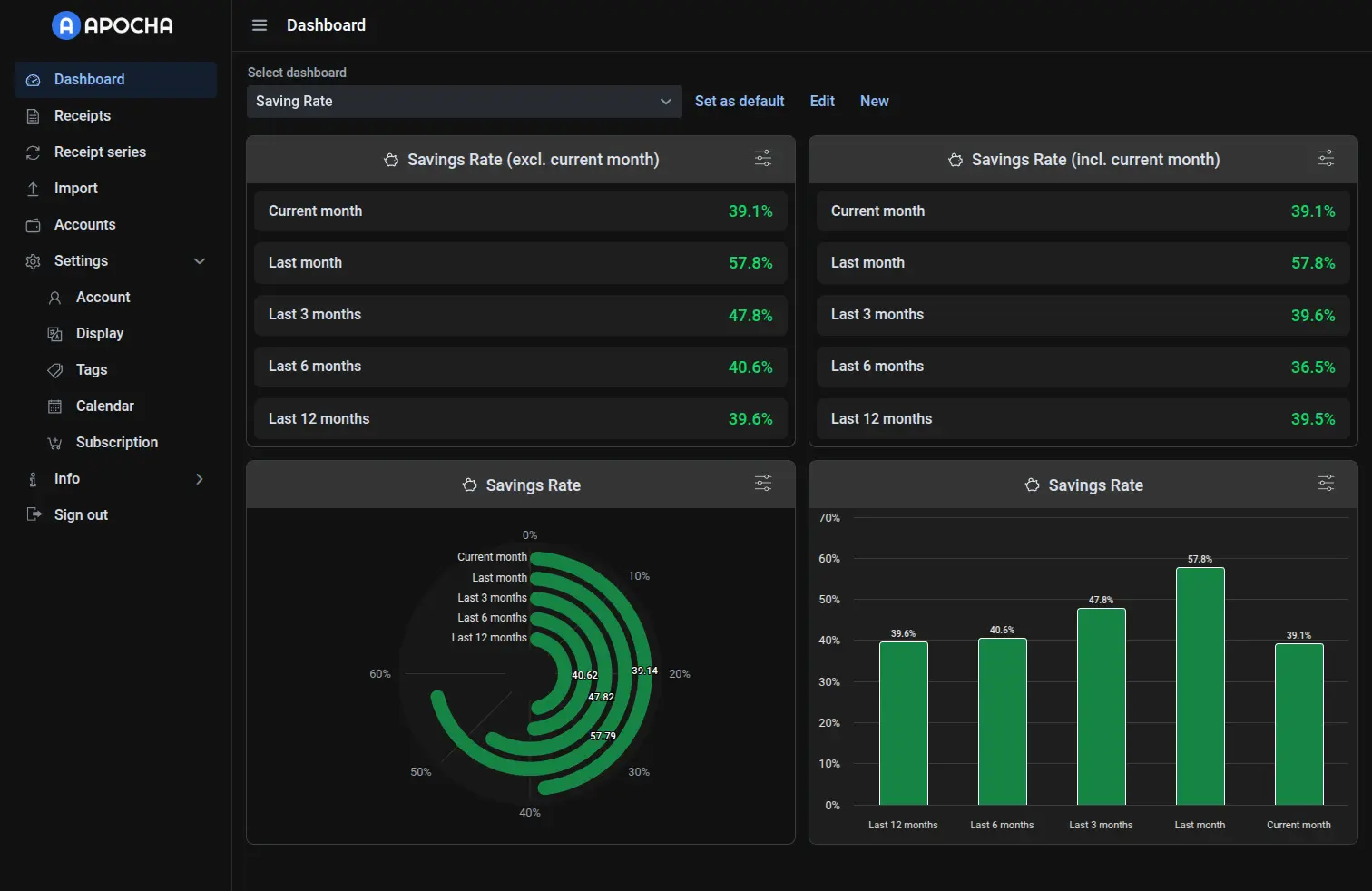
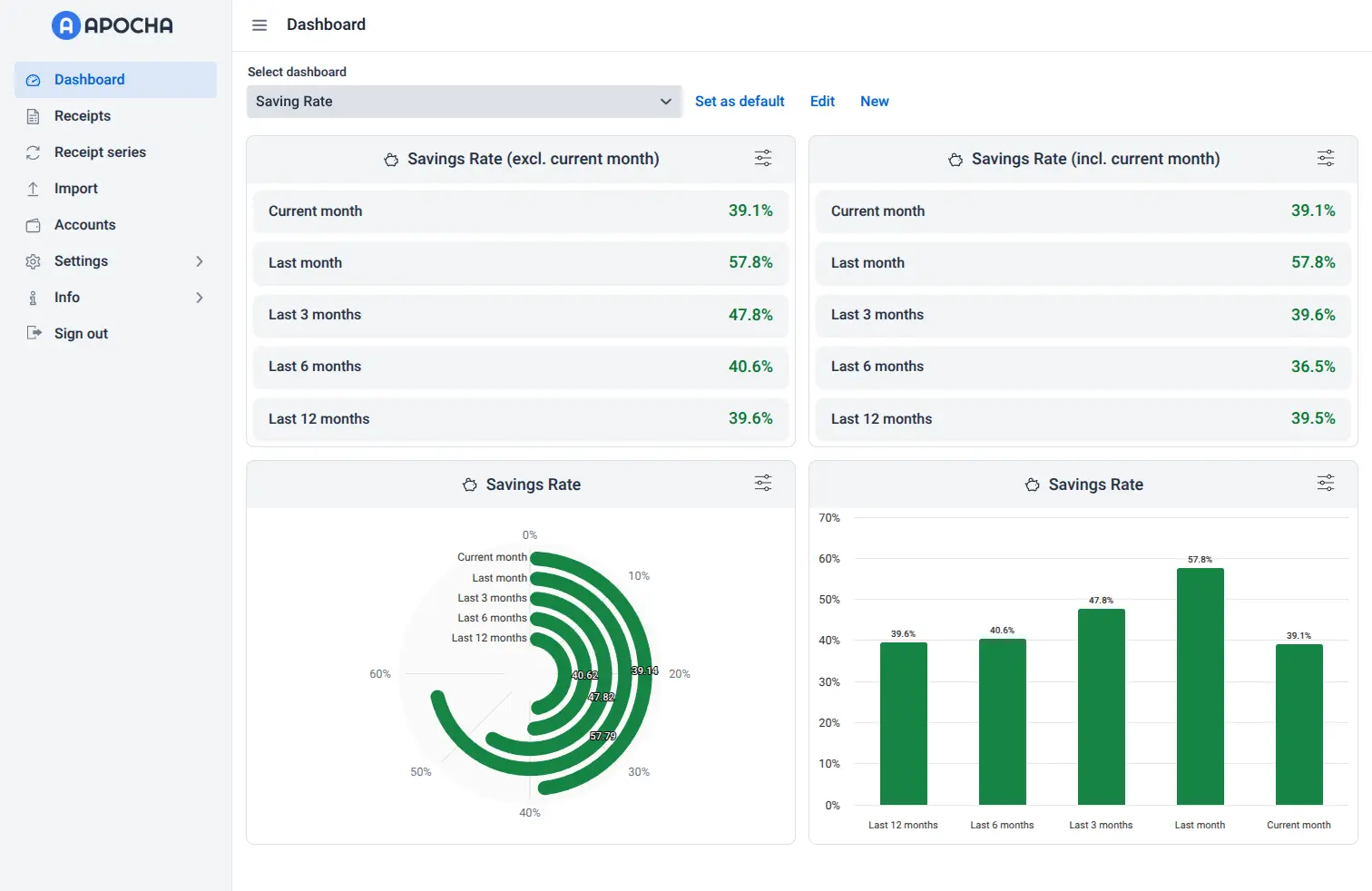
The default table view shows all time periods in a clean, scannable list. Each row displays a time period with its corresponding savings rate percentage. Values are color-coded for quick interpretation:
- Green - Savings rate of 20% or higher (excellent)
- Yellow - Savings rate between 10% and 20% (good, room for improvement)
- Red - Savings rate below 10% (needs attention)
Gauge Chart View
The gauge chart displays your savings rates as concentric arcs, creating a visual speedometer effect. Each arc represents a different time period, with the percentage displayed at the end of each arc. This view is ideal for quickly spotting which periods are performing well at a glance.
Column Chart View
The column chart shows your savings rates as vertical bars, making it easy to compare performance across time periods. Bars are arranged from longest to shortest time period (12 months on the left to current month on the right), showing how your recent performance compares to your long-term average.
Configuration Options
Click the filter icon in the widget header to open the configuration dialog.
Display Mode
Choose how your savings rate data is presented:
- Table - Clean list format with all time periods
- Gauge - Visual arc chart for quick scanning
- Column Chart - Bar chart for easy comparison
Current Month
Control whether the current (incomplete) month is included in aggregate calculations:
- Exclude (default) - Aggregate periods (3, 6, 12 months) only include complete months
- Include - The current month's partial data is included in all calculations
The current month is always shown in the widget regardless of this setting. This option only affects whether the current month's data is included when calculating the "Last 3 months", "Last 6 months", and "Last 12 months" averages.
Exclude is recommended because incomplete month data can skew averages. For example, if you receive your salary at month-end but your expenses are spread throughout, your current month might show an artificially low or high savings rate until the month completes.
Understanding Your Savings Rate
Industry Benchmarks
While personal circumstances vary, here are common savings rate targets:
| Savings Rate | Assessment |
|---|---|
| 50%+ | Exceptional - FIRE (Financial Independence, Retire Early) territory |
| 20-50% | Excellent - Accelerated wealth building |
| 10-20% | Good - Solid foundation for long-term goals |
| 0-10% | Needs improvement - Limited margin for goals or emergencies |
| Negative | Critical - Spending exceeds income |
Why Your Savings Rate Matters
- Emergency preparedness - A positive savings rate builds your safety net
- Wealth accumulation - The higher your rate, the faster your net worth grows
- Financial freedom - Higher savings rates accelerate your path to financial independence
- Stress reduction - Knowing you're saving provides peace of mind
Tips for Improving Your Savings Rate
- Track before optimizing - Use the widget consistently to understand your baseline
- Focus on the 12-month average - This smooths out seasonal variations
- Set incremental goals - Aim to improve by 1-2% each quarter
- Automate savings - Move money to savings accounts automatically when paid
- Review major expenses - Look at Expenses by Category to find savings opportunities
Customization
Like all Apocha widgets, you can personalize the Savings Rate widget:
- Custom Title - Click the title to rename it (e.g., "Family Savings Rate" or "2025 Savings Goal")
- Custom Icon - Click the icon to choose a different symbol
- Widget Size - In edit mode, drag the widget edges to resize it on your dashboard
Related Features
- Monthly Cash Flow Widget - See the income and expenses that drive your savings rate
- Expenses by Category Widget - Identify where your money goes
- Calendar Integration - Track upcoming expenses that might affect your savings rate
- Recurring Transactions - Understand your fixed costs and their impact on savings
- Cashing Up - Establish accurate account balances for precise calculations
- Wealth Development Widget - See how your savings rate affects long-term wealth growth
Part of the Dashboard Widgets guide series.