Importing Receipts from CSV
Have a bank statement export or a spreadsheet of transactions? Apocha's CSV import lets you bring in bulk data without manual entry.
When to Use CSV Import
CSV import is perfect for:
- Bank statement exports - Most banks let you download transactions as CSV
- Migration from other apps - Export from your old expense tracker
- Bulk historical data - Enter past transactions efficiently
- Spreadsheet data - Any tabular financial data
Starting a CSV Import
- Navigate to Import in the sidebar
- Click "Import CSV" or drag a .csv file onto the upload zone
- The import dialog opens
The Import Dialog
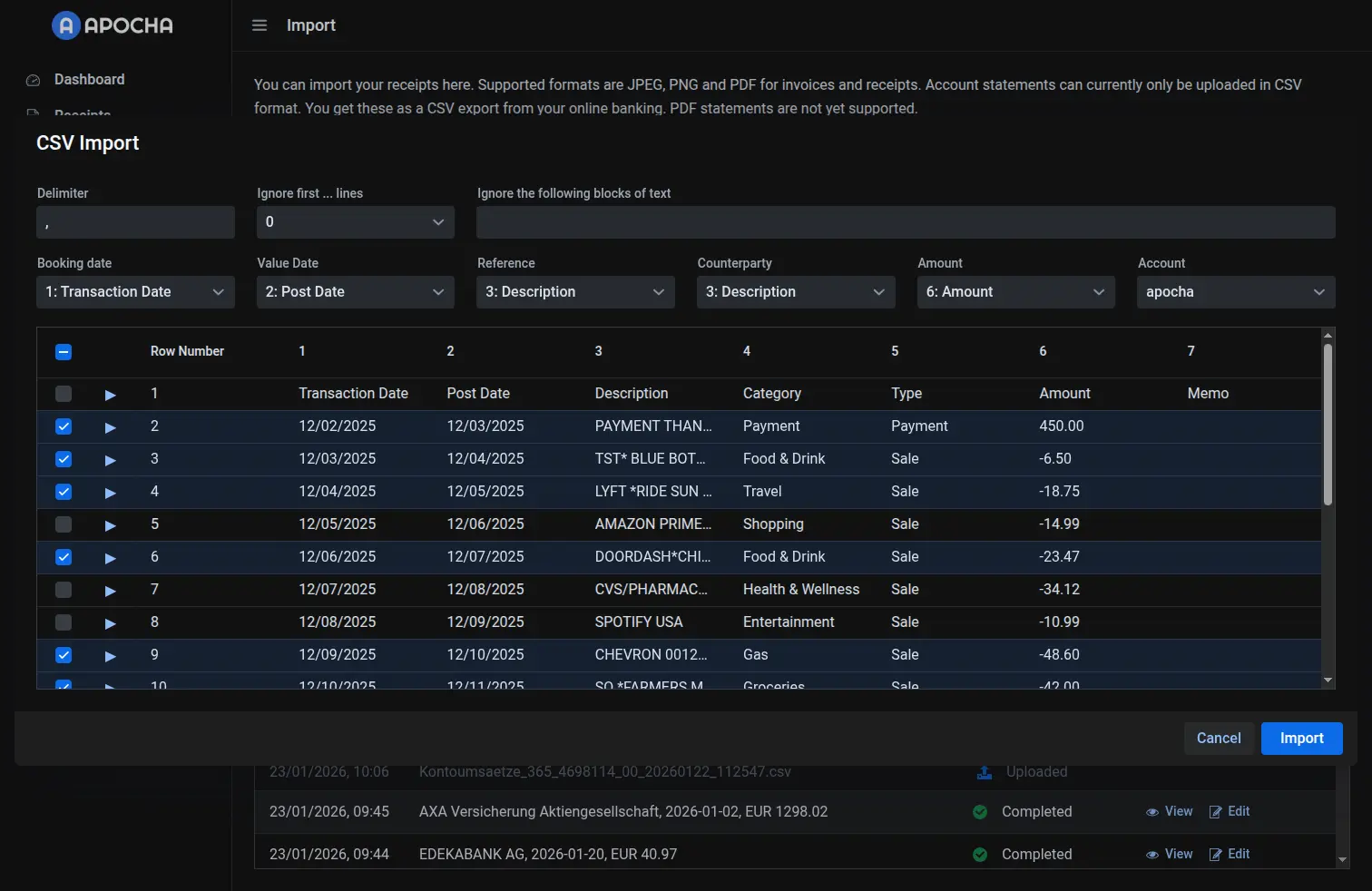
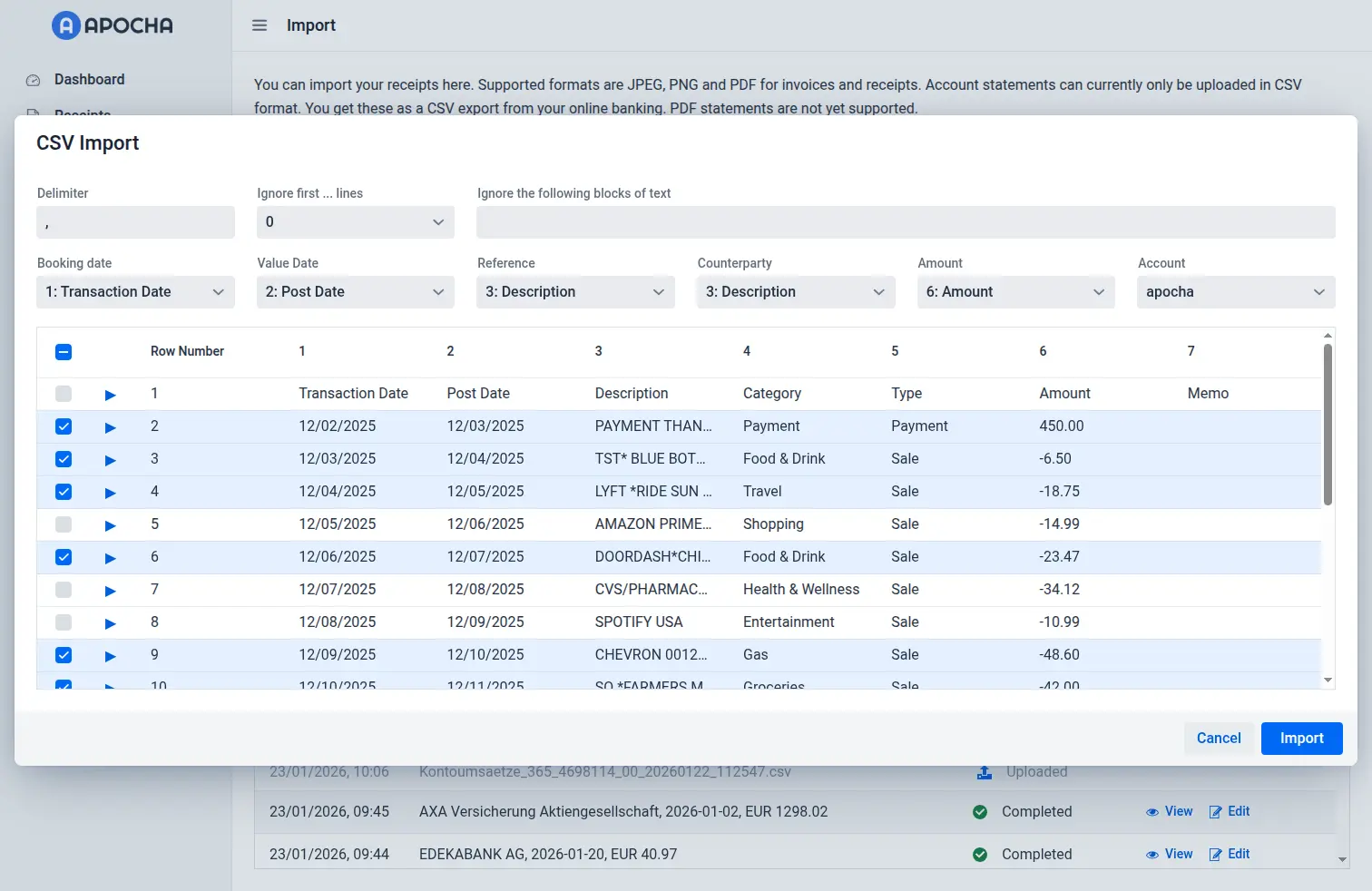
When you open a CSV file, Apocha displays a dialog with parsing settings, column mappings, and a data preview grid.
Parsing Settings
Configure how Apocha reads your CSV file:
| Setting | Description |
|---|---|
| Delimiter | The character separating columns (auto-detected: , or ;) |
| Ignored Lines | Number of header rows to skip (auto-detected based on data structure) |
| Ignored Text | Space-separated text patterns to remove from fields |
Apocha auto-detects the delimiter and analyzes the CSV structure to suggest how many header rows to skip - look for the helper text showing the auto-detected value.
Column Mapping
Map your CSV columns to Apocha fields. Each dropdown shows the column number and first data value to help you identify the right column.
| Apocha Field | Description | Required |
|---|---|---|
| Booking Date | When the transaction was booked | Yes |
| Value Date | When the transaction was valued | Yes |
| Reference | Transaction reference or description | Yes |
| Counterparty | The other party (payer or recipient) | Yes |
| Amount | Transaction value (negative for expenses) | Yes |
| Account | Which Apocha account to import into | Yes |
Apocha can determine the account automatically if some transactions in the CSV already exist in your Apocha account, e.g. some old transactions from your last import or receipts which have been imported manually with your camera. Duplicates are detected and by default excluded from the import.
Data Preview
The grid shows all parsed rows from your CSV. You can:
- Select rows - Use the checkboxes to choose which transactions to import
- Review data - Verify that columns mapped correctly
- Add details - Expand rows to add notes and tags
Adding Notes and Tags
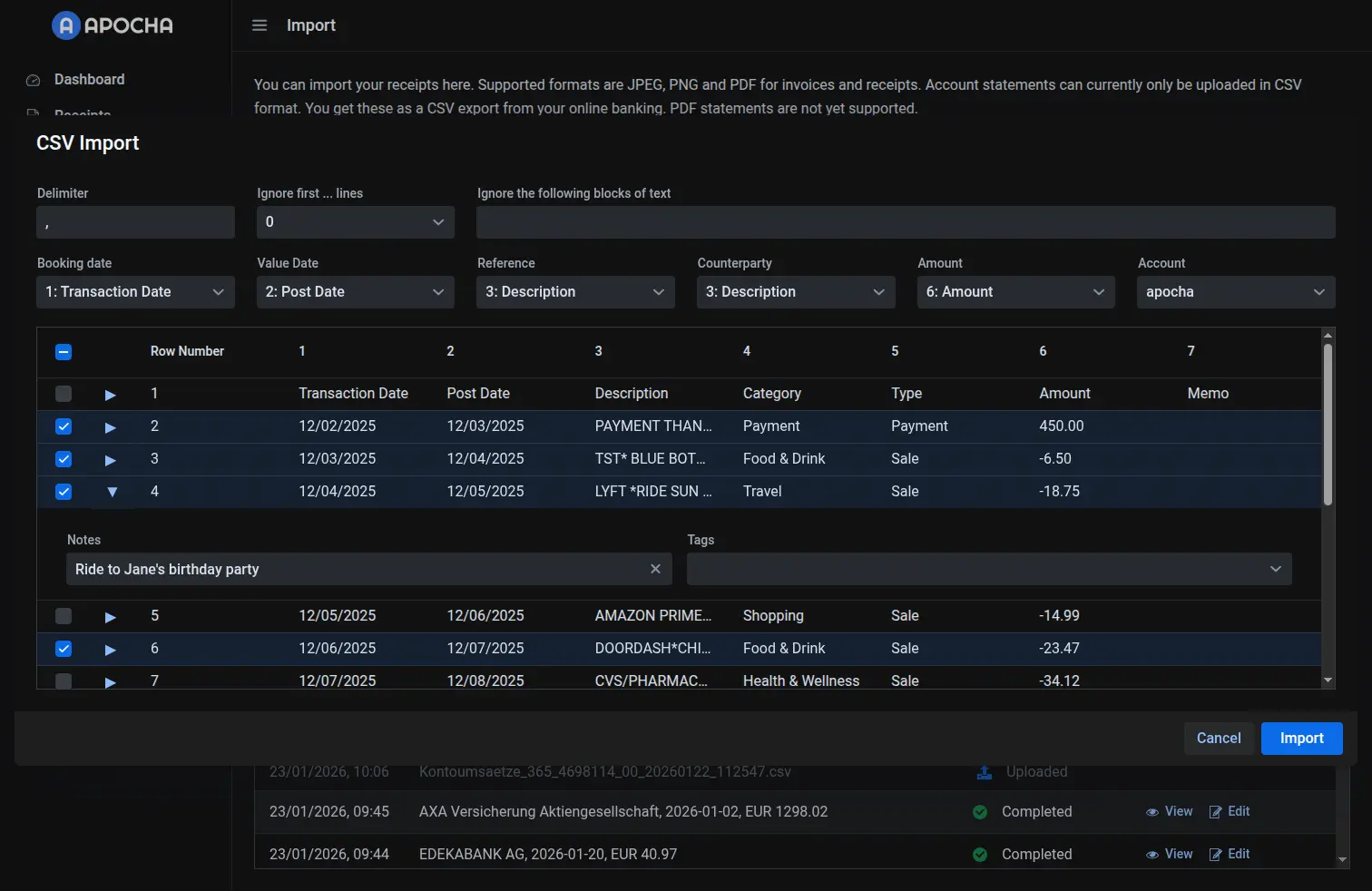
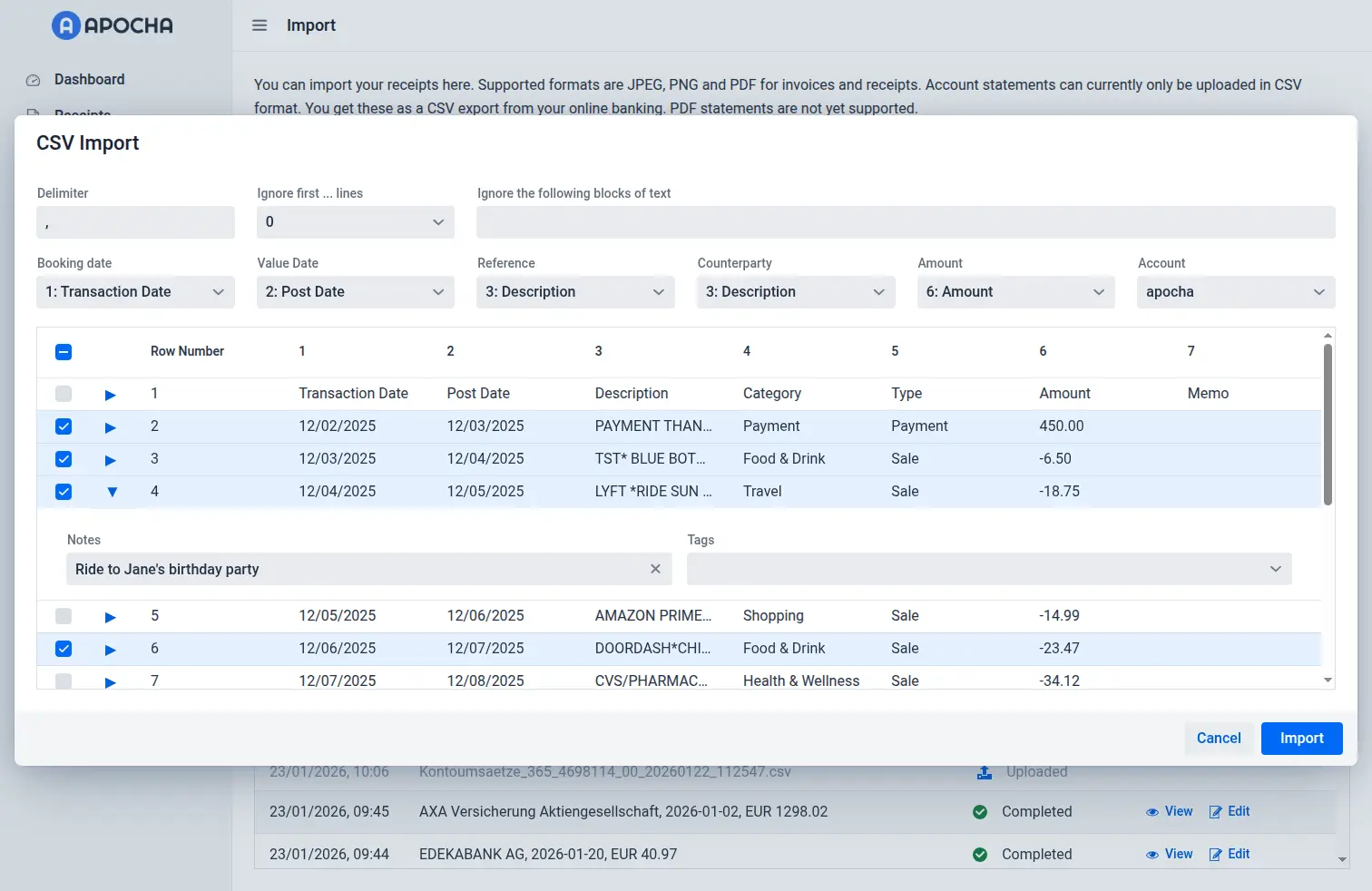
You can enrich individual rows with notes and tags before importing. This saves you from having to edit each receipt after import.
To add notes or tags to a row:
- Click the expand button (▶) next to any row
- The row expands to reveal two fields:
- Notes - Add any text notes for this transaction
- Tags - Select existing tags or type to create new ones
- Click the expand button again (▼) to collapse the row
Visual indicator: Collapsed rows that have notes or tags show a small blue dot next to the expand button, so you can easily see which rows have been enriched.
If you're importing a bank statement and already know which transactions are business expenses, tax-deductible, or need follow-up, add the appropriate tags during import. This is much faster than editing each receipt individually afterward.
Duplicate Detection
Once you've mapped all required columns, Apocha automatically filters the list to show only transactions that don't already exist in your account. This prevents duplicate imports when you import overlapping date ranges.
If all transactions have already been imported, you'll see a notification indicating this.
Importing
- Ensure all column mappings are set
- Select an account
- Select the rows you want to import (use the checkbox column)
- Click Import
A success notification confirms when transactions are imported. If you import all selected rows, the dialog closes automatically.
Handling Common CSV Formats
Bank Statements
Bank exports typically use:
- Semicolon (
;) or comma (,) as separator - Date format:
MM/DD/YYorDD.MM.YYYY - Negative amounts for expenses
Apocha auto-detects the delimiter and the daye format in most cases. The date parsing handles common formats used internationally.
Other Bank Formats
For other formats:
- Check the auto-detected delimiter and adjust if needed
- Use the "Ignored Lines" setting to skip bank-specific header rows
- Use "Ignored Text" to remove unwanted repeated text patterns from fields
After Import
Review Imported Receipts
After import, review your newly created receipts in the receipt list.
Common Post-Import Tasks
- Review counterparties - Bank descriptions may need cleanup
- Add categories - Use bulk edit to categorize similar transactions
- Add additional tags - You can add tags during import, but you may want to add more later
Tips for Success
Check Auto-Detection
Apocha tries to auto-detect the number of header rows to skip. Review the suggested value and adjust if data rows are being skipped or header rows are included.
Use Ignored Text
Bank statements often include repetitive text like account numbers or bank codes. Add these patterns to "Ignored Text" to clean up your data automatically.
Start Small
Select just a few rows first to verify the mapping is correct, then import the rest.
Keep Original File
Keep your CSV file as backup. You can always delete imported receipts and try again.
Troubleshooting
Wrong Columns Selected
If data appears in the wrong fields, check your column mappings. The dropdown labels show the column number and first data value (e.g., "3: 01.12.2024") to help you identify the correct column.
Amounts Have Wrong Sign
If expenses show as income or vice versa, your bank may format amounts differently. You may need to preprocess the CSV to fix the sign.
Too Many or Too Few Rows
Adjust the "Ignored Lines" setting. Increase it if header rows appear as data; decrease it if valid data rows are being skipped.
Garbled Characters
If special characters display incorrectly, your CSV may use a different encoding. Try re-exporting from your bank with UTF-8 encoding, or use a text editor to convert the file.
Related Features
- File Upload Import - For receipt images
- Email Import - Automatic from email
- Managing Multiple Receipts - Organize after import
Part of the Receipt Management guide series.