Importing Receipts by Upload
The fastest way to get a paper receipt into Apocha is to snap a photo or upload the file directly. Apocha's OCR technology extracts all the details automatically.
How to Upload
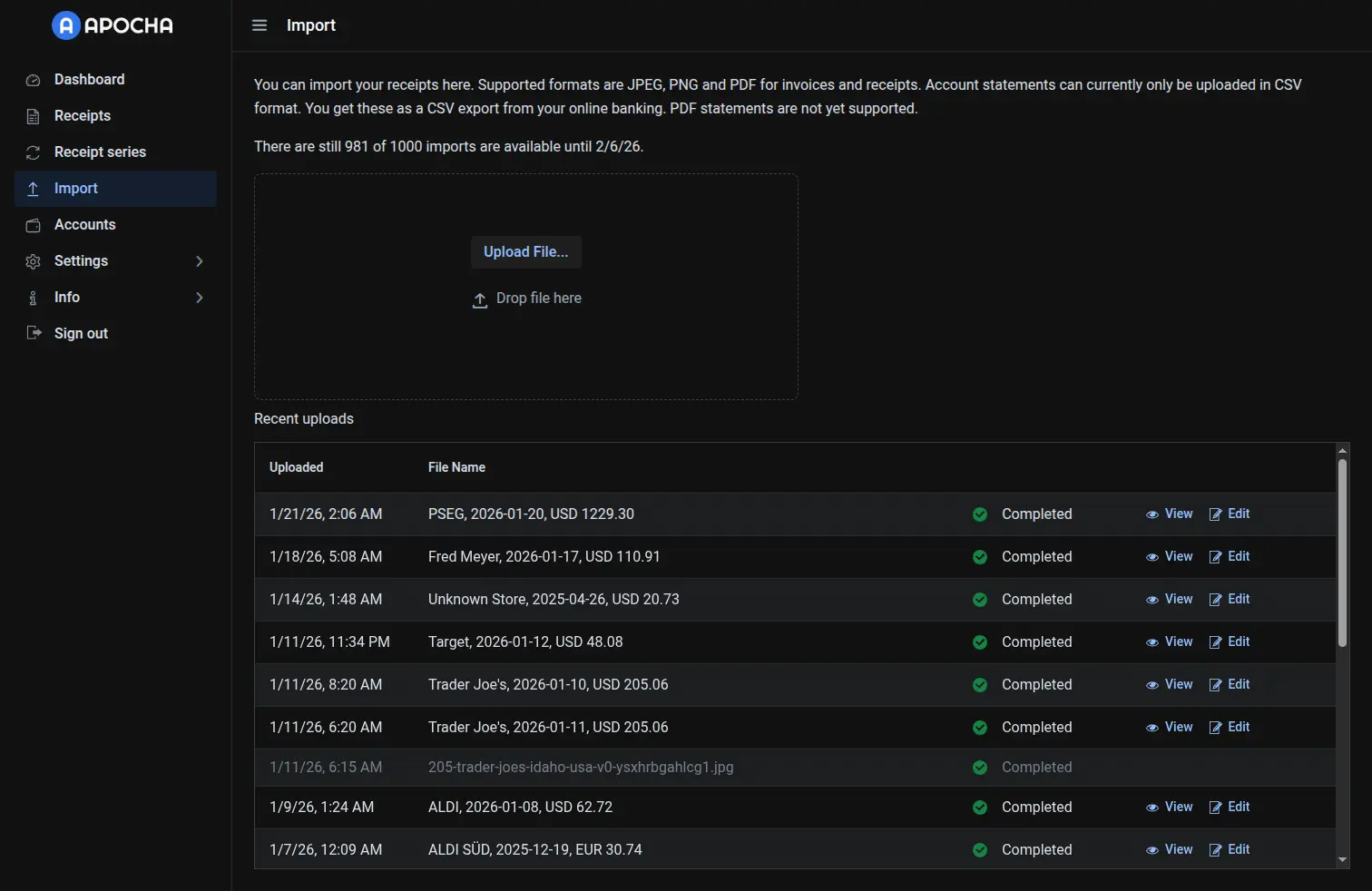
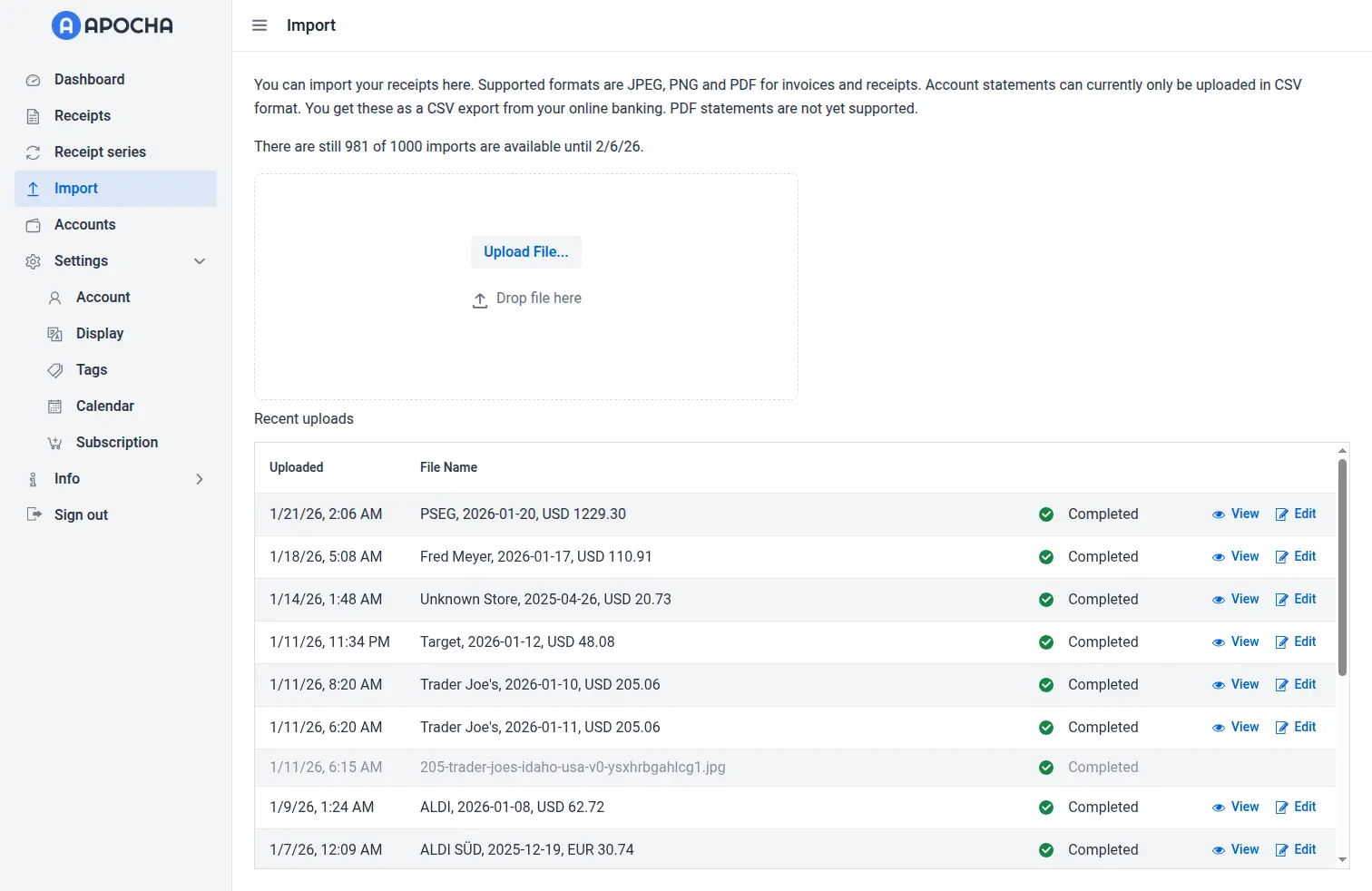
On Desktop
- Navigate to Import in the sidebar
- Drag and drop the file with the receipt onto the upload zone, OR
- Click "Choose Files" to browse
On Mobile
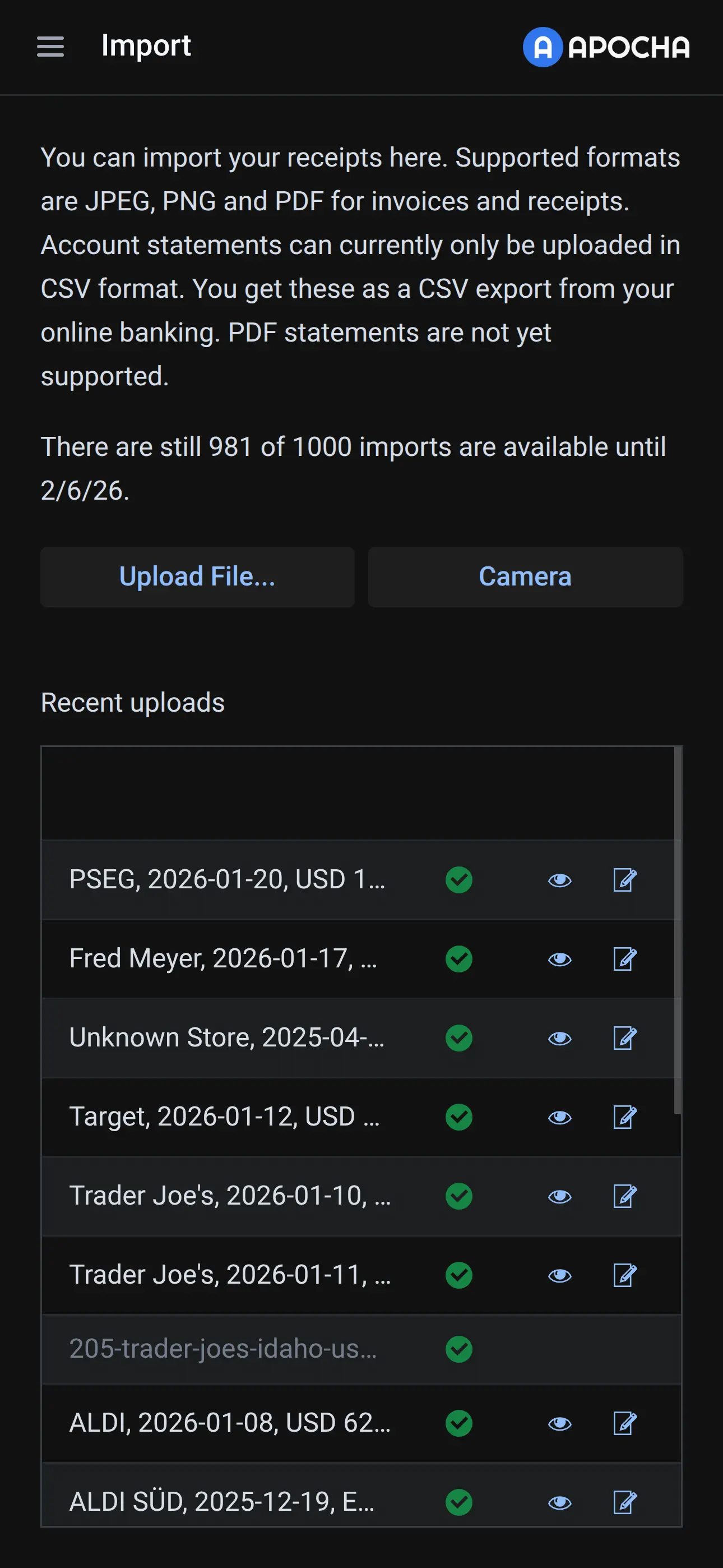
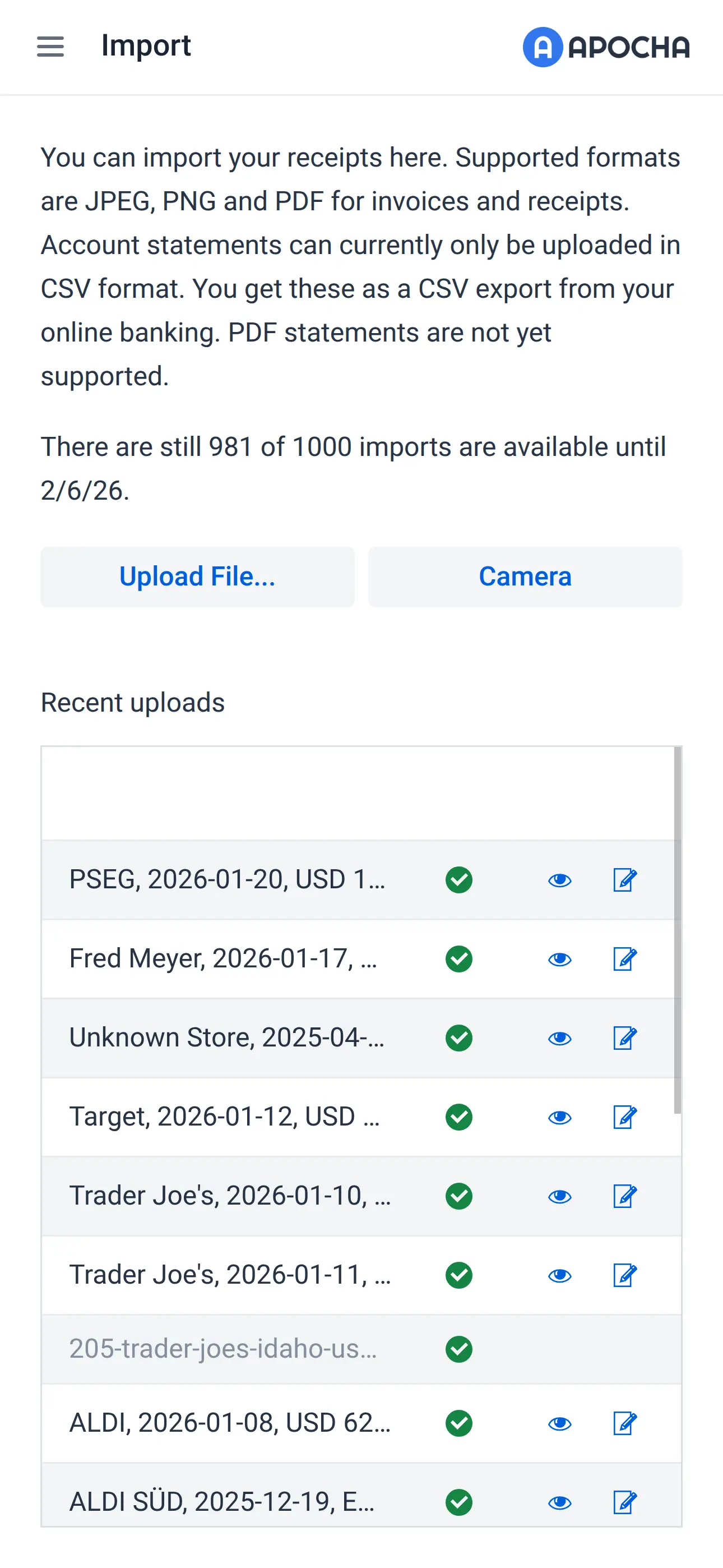
- Navigate to Import
- Tap the upload zone
- Choose Camera to snap a photo, OR
- Choose Files to select from your device
Supported File Types
| Format | Best For |
|---|---|
| JPG/JPEG | Photos of paper receipts |
| PNG | Screenshots, digital receipts |
| Digital invoices, email receipts |
For best OCR results:
- Ensure good lighting (no shadows on receipt)
- Keep the receipt flat (no folds visible)
- Capture the entire receipt in frame
- Avoid blurry photos
What Happens After Upload
Once you upload a file, Apocha processes it through several stages:
Processing Stages
| Stage | What Happens |
|---|---|
| Content Detection | Identifying the file type and content |
| OCR Preparation | Optimizing the image for text extraction |
| Text Detection | Reading all text from the document |
| Parsing | Extracting amounts, dates, store info |
| Location Analysis | Identifying the store address and location |
| Item Categorization | Automatically assigning categories |
| Finalizing | Creating the receipt entry |
Processing Status
Each upload shows its current status:
| Status | Meaning |
|---|---|
| Queued | Waiting to be processed |
| Processing | Currently being analyzed |
| Completed | Successfully created receipt |
| Failed | Something went wrong |
Upload History
The Import page shows your recent uploads (see screenshots above):
- Uploaded: When you uploaded it
- File name: Short summary of receipt data or the original filename
- Status: Current processing state
- Actions: View or edit the receipt
Viewing Completed Uploads
When processing completes successfully, click "View Receipt" to see the extracted data. Review and make any corrections needed.
Retrying Failed Uploads
If processing fails, check the error message. The image may be unreadable, so you can try again with another photo.
Common failure reasons:
- Image too blurry
- Receipt is folded or cut off
- Non-receipt document uploaded
- Unsupported language
Upload Limits
Your subscription determines how many receipts you can import per month:
| Plan | Monthly Limit |
|---|---|
| Standard | 10 receipts |
| PLUS | 50 receipts |
| PREMIUM | 250 receipts |
Your upload count resets at the beginning of each billing month. Unused uploads don't carry over.
When You Reach the Limit
If you've used all your monthly uploads:
- You'll see a notification explaining the limit
- You can upgrade your plan for more
- Or wait until next month for the reset
- Manual receipt entry is always unlimited
Tips for Better Results
Prepare Your Receipts
- Flatten - Press out folds and creases
- Clean surface - Place on a plain, contrasting background
- Good lighting - Avoid shadows and glare
- Steady hand - Or use a document scanning app first
Batch Uploading
Curently, you cannot upload multiple files at once. Each file has to be uploaded individually and is processed independently.
Use Email Import for Digital Receipts
For receipts you receive via email (Amazon, utility bills, etc.), consider setting up Email Import instead.
Troubleshooting
Upload Stuck on "Queued"
Processing happens in order. If you uploaded many files, earlier ones process first. Wait a few moments.
Processing Takes Too Long
Large files (multi-page PDFs) take longer. Most uploads complete within 1 minute.
Wrong Information Extracted
OCR isn't perfect. After a receipt is created:
- Open the receipt
- Click Edit
- Correct any errors
- Save
Image Not Recognized as Receipt
Apocha looks for typical receipt patterns (dates, amounts, items). If your document doesn't look like a receipt, processing may fail. For unusual documents, consider manual entry.
Privacy & Security
- Uploaded files are encrypted in transit
- Images are stored securely and linked to your account
- Original files are kept so you can review them later
- You can delete uploaded receipts at any time
Related Features
- CSV Import - Import bank statement data
- Email Import - Automatic email-based import
- Creating Receipts - Manual entry option
Part of the Receipt Management guide series.